
Adding a Website Banner
SquareSpace Snackables
Both as a SharePoint intranet designer and now as a SquareSpace web designer, I repeatedly hear business owners mention needing to make a simple change to a website but are unsure how to do it. Many of these conversations end up with, “I need your help.”
Two things on that last point. First, if you’re using SquareSpace, then, my responsibility is to build a site that both meets your needs and makes it easy to implement simple updates. And that’s the point of the SquareSpace Snackables - to provide resources to implement easy and quick fixes in 10 steps and 5 minutes. Second, a monthly designer retainer service could help alleviate these challenges by taking them off your plate. Ask me how to manage your SquareSpace website for you, freeing up time for you to focus on business.

Make it stand out
Add a banner at the top of your website to promote a limited offer.
In this inaugural Shortcuts entry, I’ll explain how to add a website banner to promote a limited time offer on you website to help boost revenue. If you prefer a snackable video, watch it now. Let’s jump into it.
Step 1
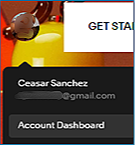
Log in to Squarespace: Start by logging into your Squarespace account and choosing the Dashboard, and
Step 2
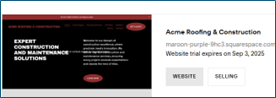
Select the website where you want to add the announcement bar.

Step 3
Access the Announcement Bar Settings: Click on "Website / Pages".

Step 4
Scroll to Marketing Tools / Announcement Bar.
Step 5
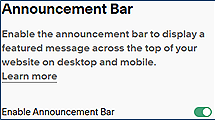
Enable the Announcement Bar: Toggle the switch to "Enable Announcement Bar".
Step 6
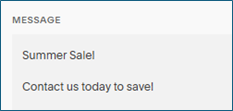
Customize Your Message: Enter the message you want to display in the announcement bar in the "Message" field. You can use this space to announce sales, events, or important updates.
Step 7
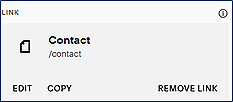
Add a Link (Optional): If you want the announcement bar to link to another page, enter the URL in the "Link" field. You can also link to a page within your Squarespace site by selecting it from the dropdown menu.
Step 8
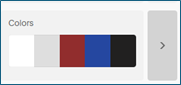
Stylize the Announcement Bar: Customize the appearance of the announcement bar by going to "Styles" in the Home Menu.
Click on the right arrow in "Colors" section.
Step 9
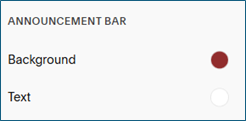
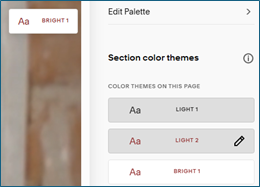
Note the button style being used in the header, then then scroll down to the "Announcement Bar" section. Here, you can change the background color, text color, and font to match your site's design.
Step 10
Save Your Changes: Once you are satisfied with the message and styling, click "Save" to apply the changes.
Your announcement bar will now be visible on your Squarespace website. If you need any further assistance, feel free to ask! 😊
